Employee Foundation of the VKR Group 🤝 PhanTribe
💡 Are you already logged in, but cannot see this event?
Tap the ☰ icon in the bottom right corner and then tap the Switch to other company button and enter your invitation code DYS26. You should then be able to see the event in the list and switch between events.
Welcome to Donate Your Steps 2026
Build teams of 5 and embark on a step-counting adventure that rewards every move you make.
Ready to take your first step? Download PhanTribe and sign up.


Start: Oct 1st, 00:00 am CET
End: Oct 8th, 23:59 pm CET
Use the invitation code DYS26 to get started.

Short on time? Check out our pre-event video below.
What is Donate Your Steps 2026 about?
Keep moving. Keep giving back.
We need your help! Join us from 1–8 October 2026 and turn your everyday steps into support for Habitat for Humanity. Alongside 18 volunteers on Live a Dream in Slovakia, let’s embrace The Movement, keep moving together, stay healthy and contribute 💙
Steps
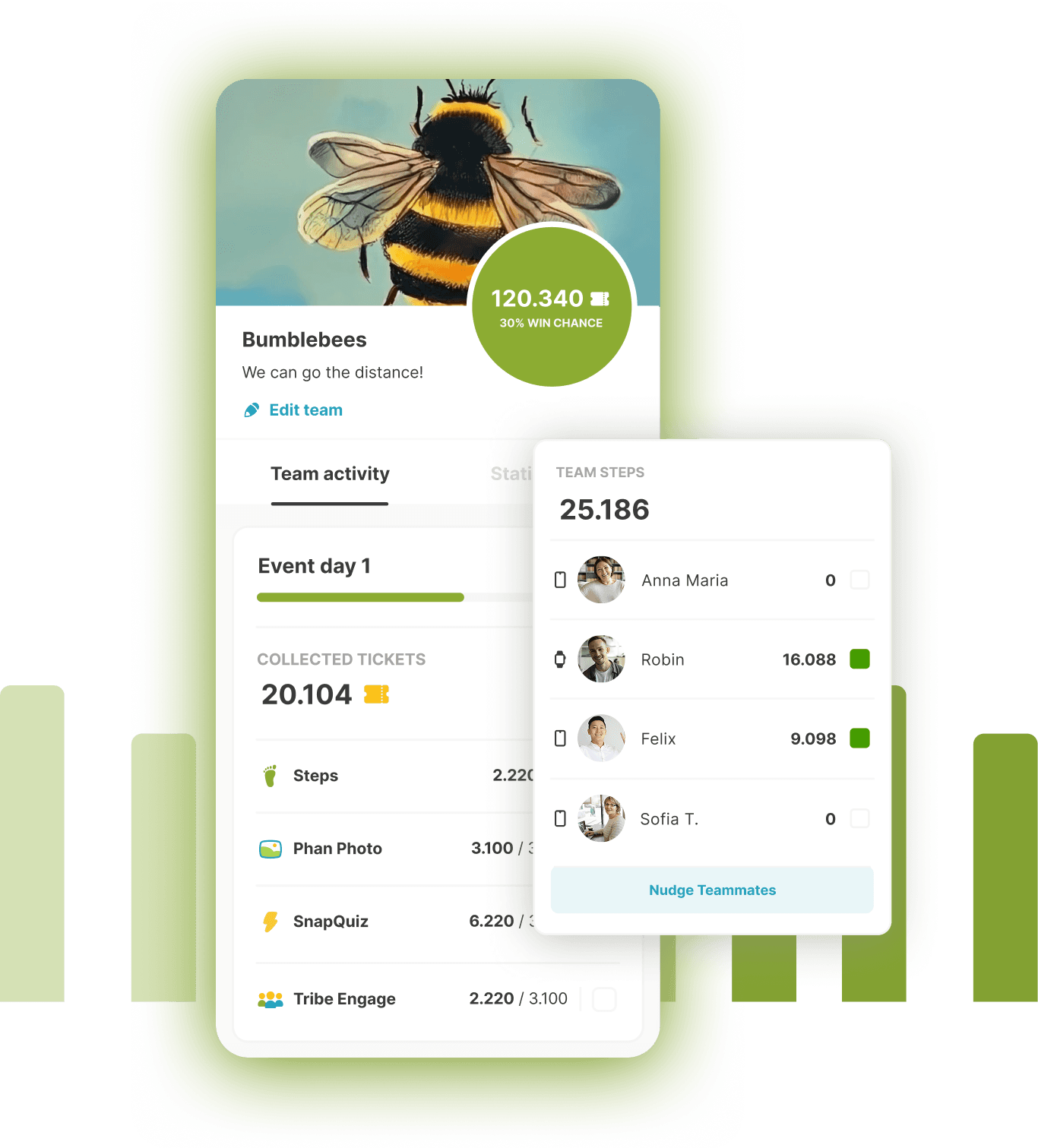
Every step counts, walk as many as you can!
- Use your phone's step counter or upload a picture from your smart watch.
- Walk at least 3.000 steps to be able to submit them to the leaderboard.
- Cheer on your team mates' submissions and earn points.
FAQs - Frequently Asked Questions
Account & Login
I already have an account. Where do I enter the invitation code?
If you have received an invitation code for an event hosted by another company, you can use it to join that company's event from the menu (☰ icon in the bottom right corner).
Tap the Switch to other company button and enter your invitation code. You should then be able to see the event in the list.
Once you have joined, you can easily switch between events hosted by different companies from the menu.
I'm already in a team, but the app is asking me to join a new one or thinks I'm a second user.
This usually happens if you've created a new account. Please try logging into your old account. If you can't remember your password, use the "Forgot Password" link on the sign-in page.
I'm having trouble logging in or resetting my password.
Ensure you are using the correct email address associated with your account. If you've tried the "Forgot Password" option and are still stuck, please contact support with your full name and any alternate email addresses you might have used.
I accidentally left my team. Will my data be lost?
No, your data should not be lost. You can request to join your team again, and once your team captain approves, you'll be good to go.
I accidentally deleted my account. Can I recover it?
Unfortunately, deleted accounts cannot be recovered. However, the spot in your old team should become available again, and you can apply to join them.
Step Tracking & Logging
How do I log steps in PhanTribe?
Watch the video below which takes you through the process of logging steps automatically and manually.
I have a smart watch - how do I submit my steps?
On iOS, you need to make sure that your smart watch is reporting steps to Apple Health. From there PhanTribe can read the data if given the permission. On Android, you have to fall back to manual logging and uploading a picture of your smart watch as proof.
My steps are not appearing in the app or challenges, or the count seems incorrect.
There can be several reasons for this:
- Automatic Logging: If you're on automatic logging, steps are pulled from your phone's health app (e.g., Apple Health, Android's step counter). There might be a slight delay in syncing. Waiting a bit and trying again later often resolves this.
- Manual Logging: If you're using manual logging, ensure you are submitting your steps for the correct day. You can submit manual logs multiple times a day if you walk more steps after a submission. If you still see discrepancies, please contact support.
- Timezone Issues: Sometimes, initial steps during the event's first hour might not be accounted for due to timezone differences.
I have chosen manual logging - when is my submission being verified?
Since there is a human sitting on the other end double checking each manual submission, it can take up to a couple of hours for your submission to be verified. However, in most cases it happens within 30 minutes or less.
How many steps can be logged?
To ensure fair play, there is a cumulative step cap of 28,000 steps per day per participant. This means you can log up to 28,000 steps for the first day, up to 56,000 steps for the first two days, 84,000 steps for the first three days, and so on.
If you walk more than that, you are of course still free to do so, but you will not earn additional points.
Can I change my step tracking method (manual to automatic or vice-versa)?
Yes, you can do that from within PhanTribe. After the event has started you tap the green button (showing your step count or GO!) in the center bottom of the screen. On the next screen you scroll down to the bottom and tap on "Switch to manual logging" (or "Switch to automatic logging").
How often can I log steps if I'm on manual logging?
You can re-submit a manual log for each day of the event as often as you like to update your step count.
I have chosen automatic logging - why isn't my step counter counting up on iPhone / iOS?
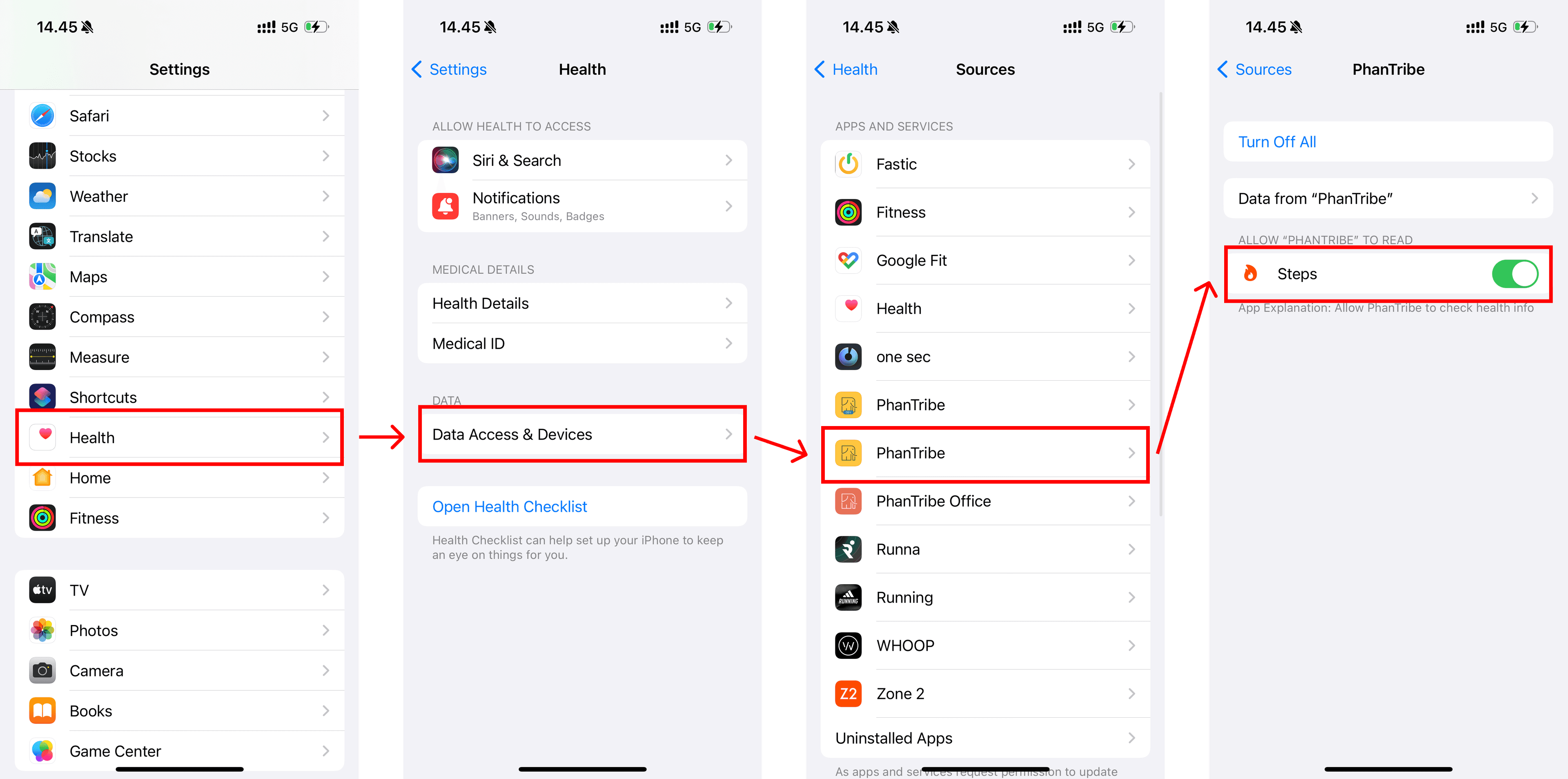
If your step count is 0 has been like that for a while even if you clearly walked some steps, then it could be because of a permission issue.
Open the Settings app on your iPhone and navigate to Health > Data Access & Devices > PhanTribe > Steps and make sure that the toggle switch next to Steps is enabled.
See image below:
Team & Profile Management
How can I change my team leader?
Your current team captain needs to contact support directly to request a transfer of leadership to you.
How can I set my country/office location in the app (if applicable)?
Your country can only be selected during the initial sign-up process. However, support can manually update this for you if you provide the desired country.